
Clip Tool
Editing a clip
Right-click any audio clip and choose Clip Tool. The editor opens with the clip’s waveform, and the preview plays exactly what you will render.
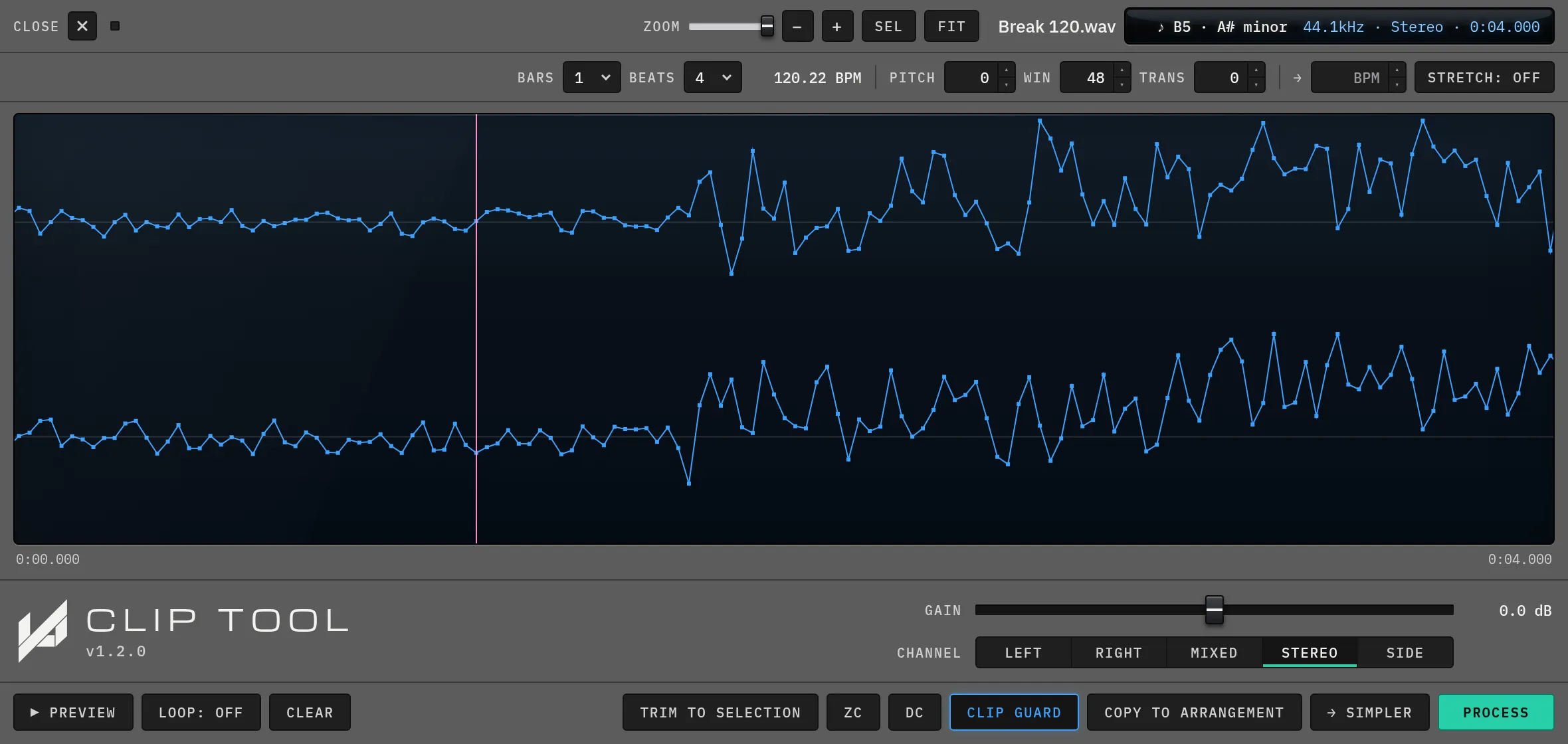
Zoomed in to single samples where a kick starts, with the playhead in pink. The header shows the file name, key, sample rate, channels and length.
| Control | What it does |
|---|---|
| Zoom | Scales the waveform from the whole clip down to single samples. Use the slider or − and +; Sel zooms to the selection and Fit shows the whole clip. |
| Select | Click and drag to select, click to drop the playhead, drag the trim handles. |
| Trim to Selection | Trims to what you selected, keeping your channel, fade, gain and stretch settings. It is non-destructive. |
| Gain | −18 to +18 dB. |
| Channel | Stereo, Left, Right, Mixed (the mono sum) or Side. |
| DC | Removes DC offset. |
| ZC | Snaps edit points to zero crossings so they do not click. |
| Fades | Fade in and out with a draggable length and a bend handle. Right-click a fade for Linear, Exponential, Logarithmic or S-curve. |
| Loop | A loop region with its own handles and an on and off switch. While Loop is on, the loop is what plays, what the fades sit on and what is rendered, as a seamless cycle. |
| Clear | Removes the loop, then the selection, to get back to the whole clip. |